Mobile game streaming: compare cloud and remote access.
 Por Rodrigo Pereira
0
Por Rodrigo Pereira
0
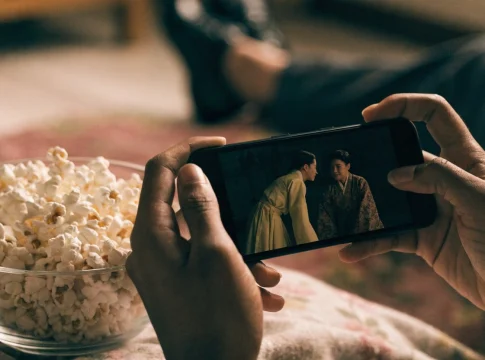
Playing via the cloud and streaming from your console to your mobile phone may seem the same on screen, but they require different equipment. In the cloud, the game runs on the service's server. With remote access, it runs on your own PC or console, which needs to be available.
Xbox Cloud Gaming and GeForce NOW fall into the first category. Steam Link and PS Remote Play fall into the second. Understanding this difference prevents you from installing an application expecting an included catalog and discovering that it only streams games from a device you still need to own.
Cloud and remote access: who runs the game
In streaming, the mobile phone receives video and audio and sends the commands. It doesn't need to locally execute all the game's graphics, but it does need to decode the transmission and maintain a stable connection. The quality depends on the combination of factors: service, network, device, and controller.
| Service | Where the game runs | What you need to check |
|---|---|---|
| Xbox Cloud Gaming | Service server | Compatible plan, title, and device |
| GeForce NOW | Service server | Compatible game and store, plus the plan. |
| Steam Link | Your computer | PC available and game running on it. |
| PS Remote Play | Your PS4 or PS5 | Console configured and connected. |
A game installed directly on Android or iPhone is another option. It may require internet for matches and an account, but it runs the application locally. Don't confuse this connection requirement with full video streaming of a remote game.
Xbox Cloud Gaming: check out the plan and the title.
Xbox Cloud Gaming allows you to play compatible titles on supported devices and browsers, including in Brazil. Cloud access is available in the Game Pass Essential, Premium, and Ultimate plans, with differences in catalog and benefits. The previous statement that only Ultimate offered cloud access is outdated.
On your mobile phone, the browser is the official way: access the Xbox gaming area at xbox.com and sign in to your Microsoft account. Check the cloud indication for the desired title. Do not search for APKs of old applications to try to reproduce instructions that no longer correspond to the service.
Some compatible free-to-play games, such as Fortnite, can be accessed via the cloud without a paid Game Pass subscription, although they require an account and other necessary requirements. This does not unlock the entire catalog. Check the game's page and the terms and conditions before subscribing or starting a session.
GeForce NOW: Your library needs to be compatible.
GeForce NOW streams games running on the service's servers. In Brazil, the GeForce NOW Powered by ABYA offering serves the region. You connect accounts from compatible stores and need to own the paid games you want to use, as well as verify that the title and store version are available.

Access GeForce NOW to stream compatible games via the cloud.
Subscribing to the service doesn't mean buying the entire game library. There are compatible free titles and games that require separate purchase. Search for the exact title and the store where you own it before paying for a streaming plan.
Plans may differ in priority, session time, and usage conditions. Check the regional offer and behavior after consuming the included hours, when applicable. A plan description from another country may not match the plan available in your Brazilian account.
Steam Link: a computer is still required.
Steam Link uses Remote Play technology to stream video and audio from your computer to another device. The PC needs to be running the game and be available for connection. The mobile app does not replace your computer or automatically provide games you don't own.

Stream games from your computer to your mobile phone using Remote Play.
Start the test on the same network, with the game running normally on the computer. Pair the devices using the official procedure and check the controls. If the game is already having problems on the PC, resolve that issue before investigating the transmission to the phone.
For access outside your home, also consider the internet connection of the location where your computer is. A good download speed on your mobile phone doesn't compensate for a source incapable of stable transmission. Keep your system and Steam updated and protect your account.
PS Remote Play: Stream your PS4 or PS5
PS Remote Play lets you access games from your PS4 or PS5 on compatible devices. The console must be set up and connected. Depending on the console's status, power and network settings may need to allow remote access as per Sony's instructions.

Remote access to a PS4 or PS5 configured to stream to a mobile phone.
Check your account, system version, and controller compatibility. The app may offer on-screen controls, but the experience varies depending on the game and the type of control. For games with many buttons or precise movements, a compatible controller may be more comfortable.
Remote Play is not a subscription that delivers a PlayStation in the cloud. The game continues to run on your console, and availability depends on it. If someone else is using the device, coordinate the session to avoid interrupting use or altering what is being played.
Internet: speed is only part of the evaluation.
In addition to speed, pay attention to latency, delay variation, and packet loss. A connection can download files quickly but still experience fluctuations that disrupt real-time commands. Use the service's network test when available and conduct a short session during the time you intend to play.
As a benchmark, NVIDIA specifies at least 15 Mbps for 720p at 60 frames per second and 25 Mbps for 1080p at 60, in addition to latency limits. These numbers do not guarantee quality across the entire network; the route to the server and stability also influence performance.
If you use Wi-Fi, test near the router and compare the 5 GHz band when compatible. It may offer good conditions at short distances, but walls and distance change the result. A 2.4 GHz network with a strong signal should not be dismissed just because of the name; make a practical comparison.
Mobile data: estimate your usage before a long session.
Game streaming transmits video continuously and can consume a large portion of your data allowance. As an illustration, a constant transmission of 10 megabits per second corresponds to approximately 4.5 gigabytes in one hour, before considering variations and traffic details.
Actual data usage depends on service quality and behavior. Check your mobile data counter before and after a short session. If your plan reduces speed after a certain limit, quality may drop even if the network shows a strong signal.
Public networks can also impose limits or block traffic. The guide to Public Wi-Fi and network authentication This helps to understand access. To play games, assess stability and usage conditions, without assuming that a free network will have sufficient capacity at the chosen time.
Control, touch, and comfort during gameplay.
Check if the game supports touch, controller, or keyboard and mouse on the device you're using. A game's availability in the catalog doesn't guarantee that all input methods will work. Read the game and service requirements before purchasing an accessory.
- Test all the buttons in a short session.
- Check the controller's battery and pairing status.
- Position your phone in a stable holder.
- Use a comfortable volume and take breaks.
- Check if the charger or cable is interfering with the position of your hands.
A simple support can improve comfort more than increasing transmission resolution. If you have to hold your phone and controller in an improvised way, the session tends to be uncomfortable. Adjust your environment before evaluating a long match.
Test the service with a game you are familiar with.
- Check the compatibility of the title and your account.
- Connect the controller or select a game with touch.
- Run the network test offered by the service.
- Start with a quality that matches the connection.
- Observe the response to commands and the stability of the image.
- Save your progress and exit using the game's procedure.
Use a familiar activity to observe differences in response. A very difficult or unfamiliar activity can confuse transmission delay with unfamiliarity. Also compare a slower-paced game with one that requires quick reactions, according to your interests.
If the plan has a waiting list, check the wait time during your usual gaming hours. A service might work well technically but still not fit your available time. This experience is part of comparing cost and usage, as well as catalog and image quality.
Resolve poor image quality and delayed commands separately.
Blurred image quality may be related to selected quality, compression, or instability. Command delays may involve network, control, and processing issues. Change one setting at a time to identify what improves the problem, rather than changing everything simultaneously.
Close competing downloads and streams during a test, whenever you can do so without interrupting others. Try a different time and a location closer to the router. If the problem only occurs with one title, check the service status and compatibility for that game.
When accessing remotely, check the source. An overloaded PC or console with an unstable connection can result in poor transmission even when the mobile phone is on a good network. Test the game locally first, and then test the path to the phone.
Saving and Library: Confirm where your progress is located.
Progress depends on the game, the account, and the available synchronization features. Don't assume that one version from one store will share the same save data with another. Check your connected account and the title's cloud options before switching between platforms.
End the session via the game menu whenever possible and wait for the save confirmation. Closing the browser in the middle of a save may leave doubts about the progress. In games with automatic saving, identify the corresponding indicator and avoid interrupting it.
If you intend to play with friends, consult the guide. online games to play in groups. Platform compatibility, game version, and invite features need to be checked separately from the streaming option.
Battery, temperature, and screen quality.
Even without running all graphics locally, the phone keeps the screen, network, and video decoding active. Long sessions can heat up the device and drain the battery. Avoid covering the phone or leaving it in direct sunlight while playing.
If a temperature warning appears, stop the session and follow the manufacturer's instructions. Do not attempt to cool the device using improvised methods. Reduce usage and wait for normal conditions to return before continuing.
The guide to monitoring and battery saving This helps to monitor consumption. Adjust brightness and transmission quality to the environment, while preserving readability. A higher resolution than the experience requires may increase traffic without making a significant difference to you.
Compare the total cost based on how you intend to play.
Some subscriptions, games that need to be purchased, accessories, and potential data costs. For those who already have a PC or console, remote access can leverage existing equipment. For those who don't, the cloud avoids this specific requirement, but maintains dependence on the service and the internet connection.
Check renewal and cancellation policies before subscribing. Catalogs and conditions change; a subscription does not guarantee the permanent availability of every title. If you are only interested in one game, confirm its exact availability and consider how much time you intend to dedicate to it.
Do not share your password to purchase access sold by third parties as a pre-built account. Use your own account and official purchase channels. This way, you maintain control over your progress, payments, and access settings.
Common questions
Can I play without a PC or console?
Yes, on compatible cloud services like Xbox Cloud Gaming and GeForce NOW. Steam Link and PS Remote Play depend on your original equipment.
Do all Game Pass games work in the cloud?
Don't assume that. Check the cloud indication and availability for your plan, region, and device. Catalogs may differ between plans.
Does GeForce NOW include all paid games?
No. Generally, you need to own the title in a compatible store and confirm that this version is available on the service. There are also compatible free games.
Does fast internet eliminate lag?
No. Latency, stability, routing to the server, and control also influence it. Do a test in the location and time you intend to play.
Determine whether you need cloud or remote access, check out a specific title, and have a short trial session. Use this trial to decide on the plan and accessories you need.